




MikroTik hEX S — Bell Canada PPPoE Setup Procedure

Table of contents

MikroTik hEX S Bell Canada PPPoE Setup (VLAN 40) + Safe Backup Strategy
Step-by-step RouterOS v7.21.4 long-term setup for Bell PPPoE on VLAN 40, with backup and RSC recovery best practices before and after changes.
Important Security Note
Do not publish real PPPoE credentials in a public blog post. Replace username/password with placeholders before posting.
Quick Environment Details
Date: 2026-05-21
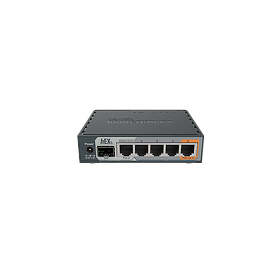
Router: MikroTik hEX S
RouterOS: v7.21.4 (long-term)
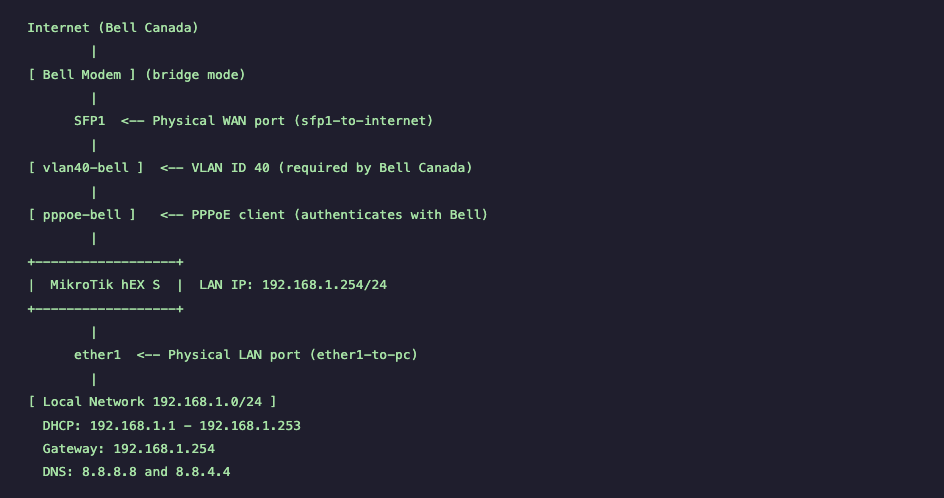
LAN Router IP: 192.168.1.254/24
WAN Method: Bell PPPoE over VLAN 40 on SFP1
Network Diagram
Pre-Change Checklist
- Confirm current DHCP client, VLAN, PPPoE, NAT, and firewall state.
- Create backup files before any change: one .backup and one .rsc.
- Confirm Bell modem is in bridge mode.
- Use placeholders in documentation: YOUR_BELL_USERNAME and YOUR_BELL_PASSWORD.
Step-by-Step RouterOS Commands
1) Review existing config:
2) Remove old DHCP client on WAN (if present):
3) Remove incorrect NAT rule (if it points to raw sfp1):
4) Create VLAN 40 on SFP1:
5) Create PPPoE client on VLAN 40:
6) LAN IP on ether1 (if not already set):
7) DHCP pool + server + network:
8) NAT masquerade via PPPoE interface:
9) Basic firewall rules:
Verification Commands
Backup and Recovery Plan
- Create pre-change binary backup: backup-YYYY-MM-DD.backup
- Create pre-change export: export-YYYY-MM-DD.rsc
- Create post-change final backup after validation.
- Download all backup files off-router (never keep only one copy).
- If binary backup fails, rebuild using .rsc and re-import missing sensitive items.
When to Update and When to Wait
Update when: security fixes apply, critical bugs affect your setup, or required features are needed.
Wait when: no clear benefit exists, the site is remote with weak fallback access, or stability feedback is poor.
Quick Reference
- PPPoE status:
/interface pppoe-client monitor 0 - Public IP check:
/ip address print - DHCP leases:
/ip dhcp-server lease print - NAT rules:
/ip firewall nat print - Firewall rules:
/ip firewall filter print - Routing table:
/ip route print - Logs:
/log print
MikroTik-only network engineer and trainer, helping Canadian businesses design, deploy, and understand MikroTik networks since 2002.
Leave a comment
Related Posts
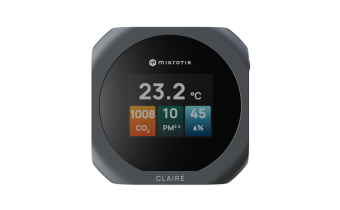
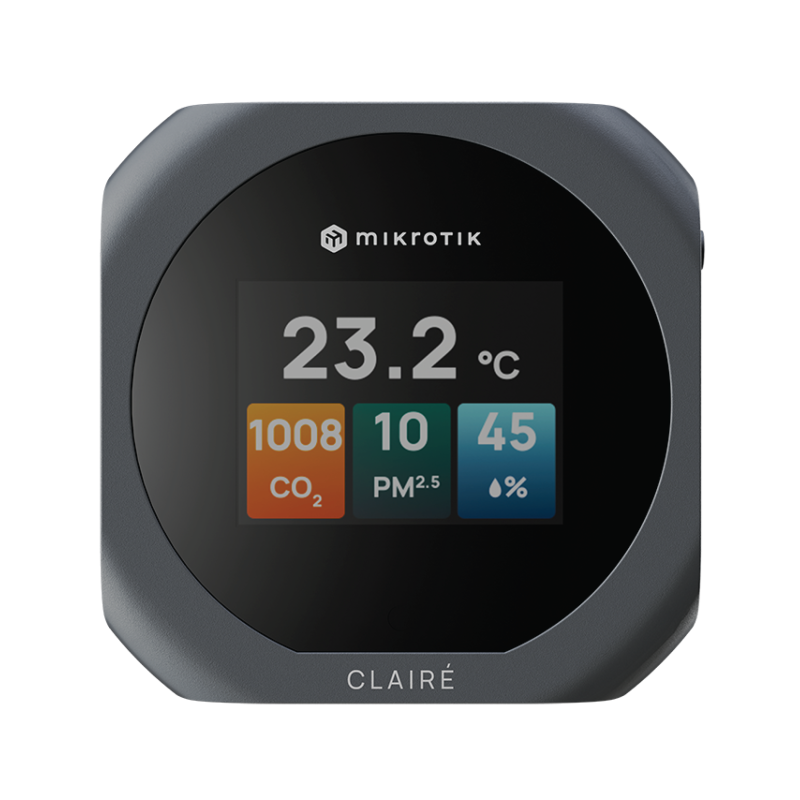
Explore MikroTik’s CLAIRÉ and CLAIRÉ Lite air-quality monitors, KNOT Gateway HL9 and LR8 IoT gateways, and the compact LGO-LTE-W antenna. See the main differences, practical uses and links to each product.


You know your business and customers best. Wireless Netware helps you turn that knowledge into a network you understand and control — using MikroTik, AI tools, practical education and support. Our free videos show how owners apply MikroTik with AI, while hands-on setup and troubleshooting are scheduled, paid services.
Before updating MikroTik RouterOS, create both a binary backup and an .rsc export to ensure a full recovery path. This guide follows the video timeline and shows what to check before updates, when to update or wait, and how to recover if a backup is corrupted.

RouterOS powers MikroTik hardware, x86 servers, and CHR virtual deployments. This guide explains the key v6-to-v7 changes, how to choose the right architecture/channel/version, and how to upgrade safely with a backup-first workflow. It also highlights common mistakes to avoid, including incorrect package selection, skipped changelog checks, firmware mismatches, and missing wireless packages during manual upgrades.






https://mikrotik.com/aboutus/company
The MikroTik website has been redesigned—and it works very differently than before.
This guide walks you through the new MikroTik website section by section, explaining how to navigate hardware, software, training, distributors, support, and documentation efficiently. It also explains where MikroTik comes from, how RouterOS changed networking, and how MikroTik Canada and Wireless Netware support users across Canada and the US with training, consulting, hardware, and real-world expertise.
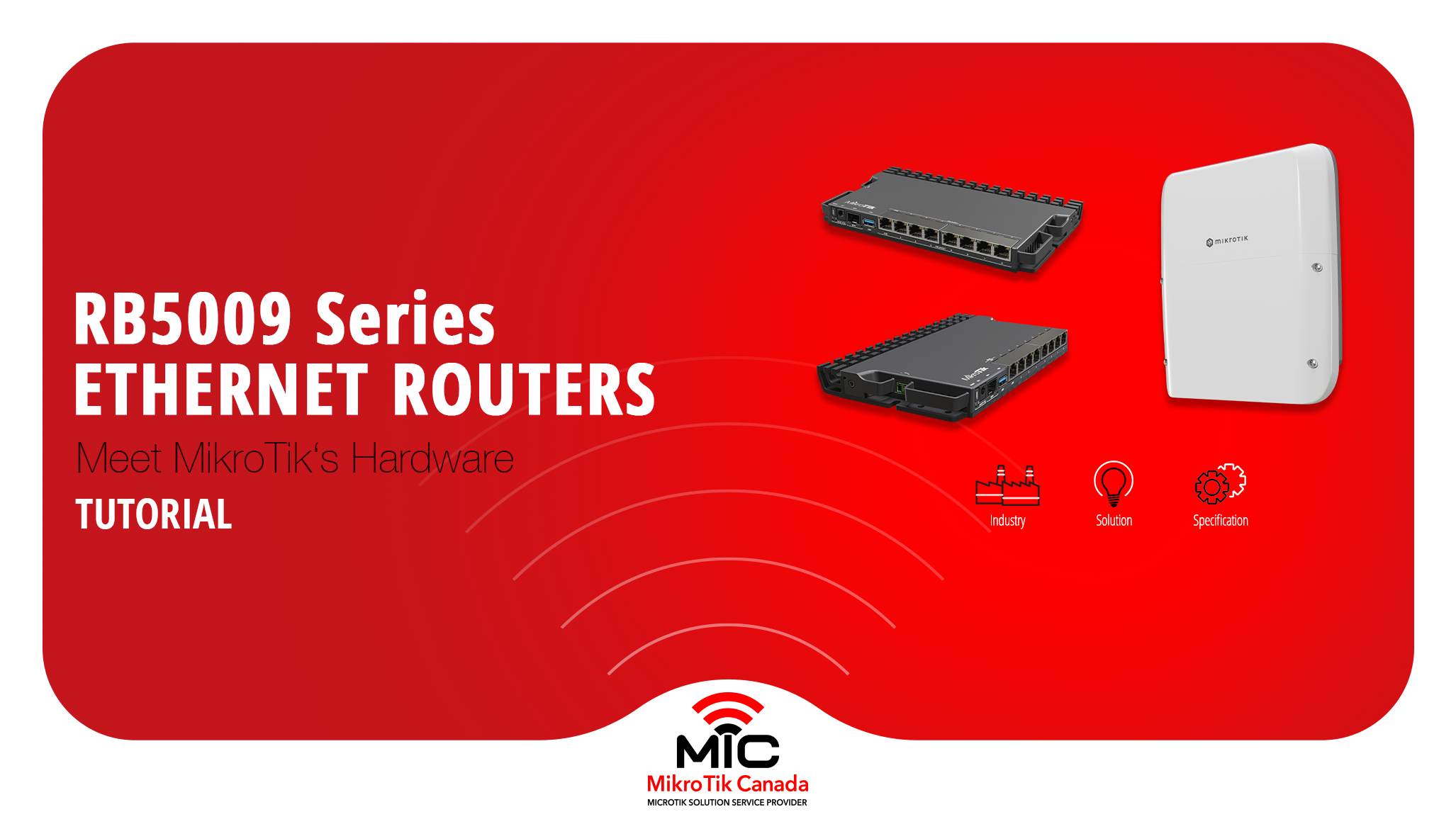
The MikroTik RB5009 series is a compact, fanless routing platform designed for high-performance networks.
With 10G, 2.5G, PoE options, and indoor or outdoor models, it fits studios, offices, ISPs, and field deployments.
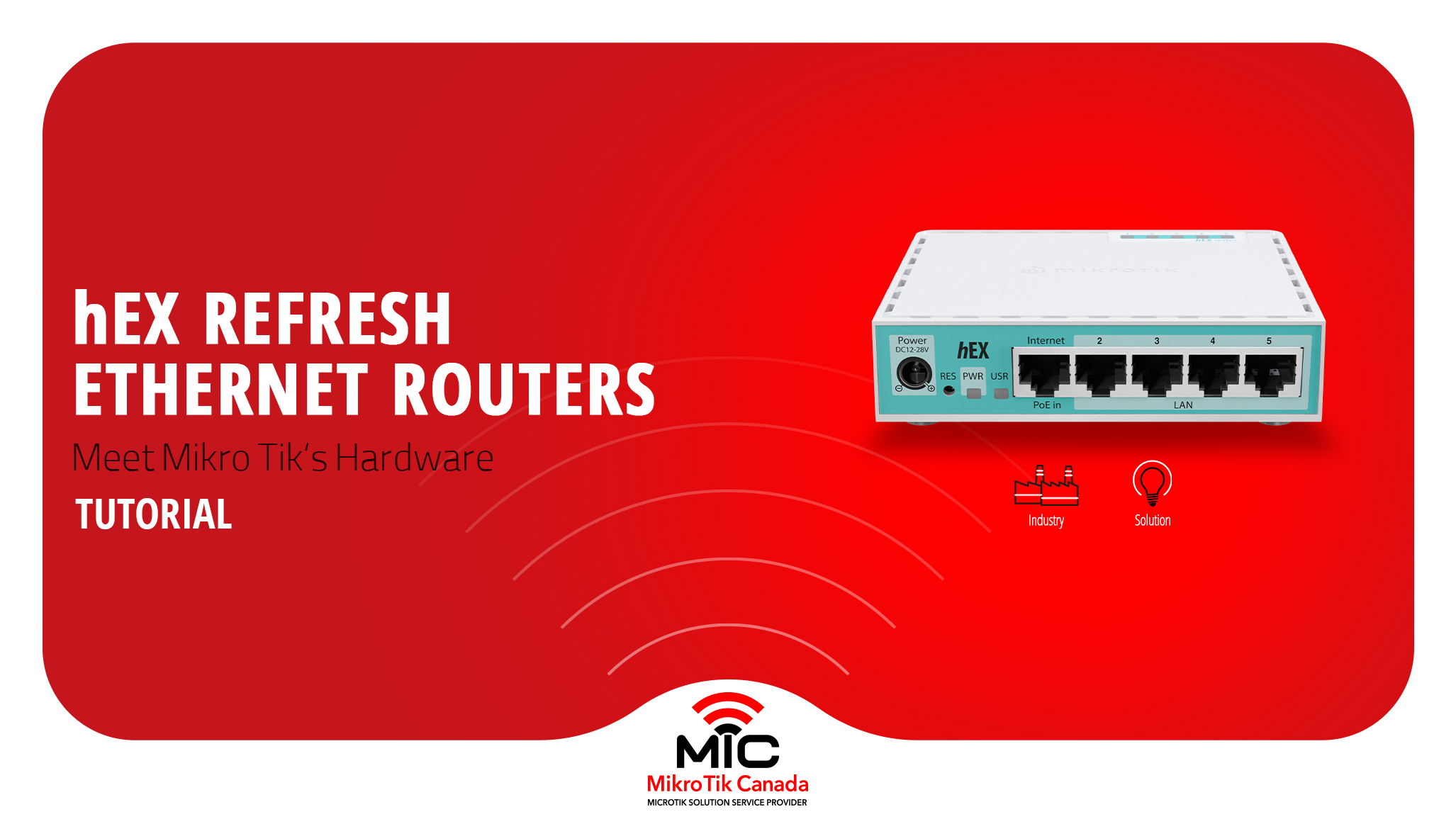
MikroTik refreshed its most popular wired router without changing the price. This post compares the classic hEX (RB750Gr3) with the new hEX Refresh (E50UG), focusing on hardware changes, real performance gains, and which one actually makes sense to deploy today.
-%20Thumbnail.png)
Side-by-side comparison of the legacy MikroTik hEX S and the new hEX S (2025) — CPU, RAM, storage, SFP, PoE, block diagrams, and real test results to help you choose the right router.